Loop any video
as a fake webcam
CamLooper is fake webcam software that turns any recording into a seamless virtual camera for Zoom, Teams, OBS, Discord and every other app that reads a webcam. Free and supported by ads, for Windows and Linux. Your videos stay on your machine.
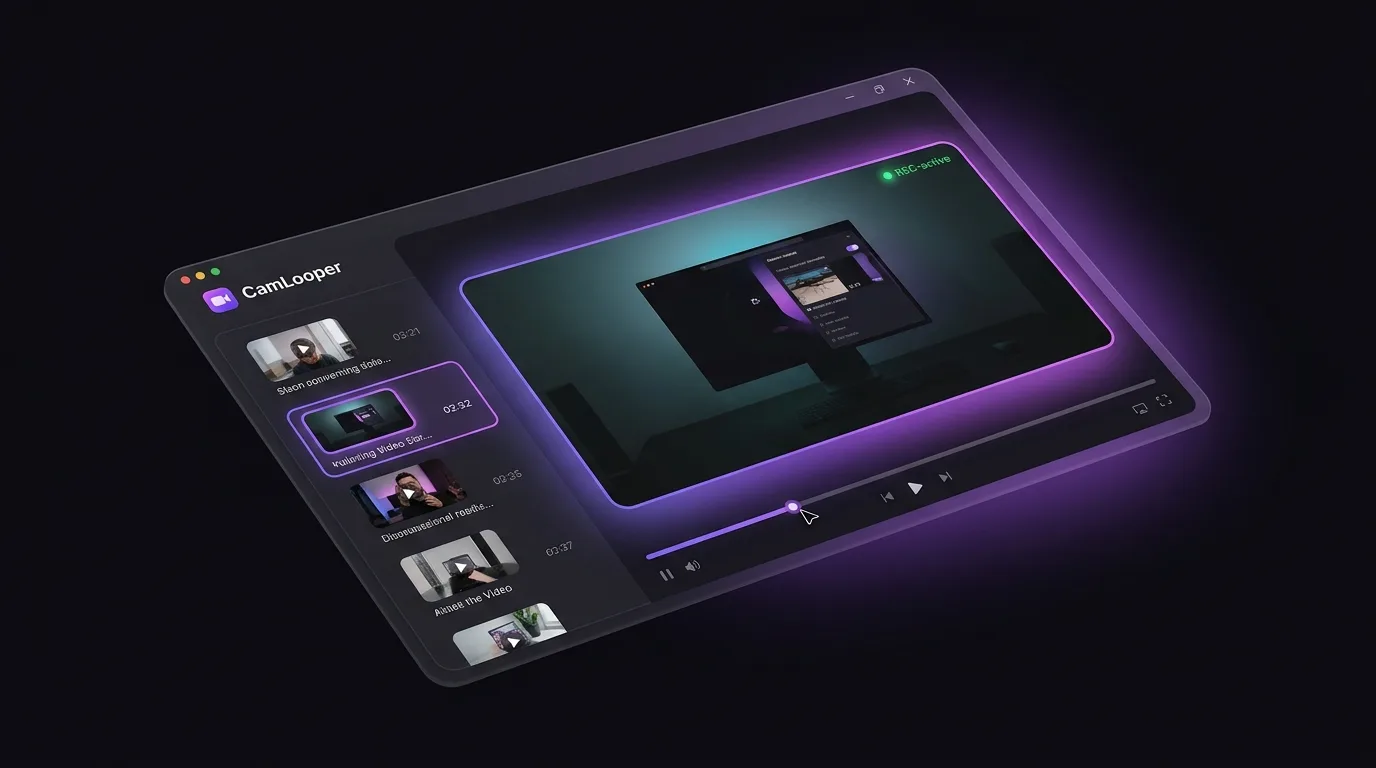
Use CamLooper as a fake cam in any app that lets you pick a camera: choose your video, press Start, and select "CamLooper Virtual Camera".
Everything you need in a fake webcam
Built for content creators, streamers, educators and everyone who's tired of "sorry, my camera isn't working".
Universal virtual camera
Registers as a real webcam device — so it shows up in Zoom, Teams, Meet, OBS, Discord, Slack, and anything else that supports a camera input.
Seamless looping
Loop any recording indefinitely with clean cuts. Perfect for background loops, standing demos, or "always-live" content.
Fast, native, low overhead
Tauri + Rust + FFmpeg under the hood — small install, low CPU, no Electron bloat.
Works with everything
If it takes a webcam, it takes CamLooper. Meeting apps, streaming tools, browser-based conferencing — all supported.
Drag, drop, done
Drop a video, tweak loop and quality options, hit start. The virtual camera is live in the next app you open.
Your video stays on your computer
All video processing runs on your machine. Your video is never uploaded, there are no accounts, and nothing about what you play is reported. The app does load ads from the web.
How CamLooper works
Three steps between "I have a video" and "everyone sees it in my next call".
Drop in your video
Any common format — MP4, MOV, MKV, WebM. Or record straight into the app.
Pick loop & quality
Loop forever or once, choose resolution and framerate to match your bandwidth.
Select CamLooper as camera
In any meeting or streaming app, pick "CamLooper Virtual Camera" as your webcam.
Built for anyone who shows up on camera
A few of the ways people use CamLooper today.
Presentations & demos
Roll a pre-recorded intro, keep a background loop running, or play a prepared clip as your camera. Free for personal and other noncommercial use, including schools and charities; commercial use needs a paid license (email [email protected]).
Streaming & content
Feed loops into OBS as a camera source. Great for standing intros, be-right-back scenes, or product demo B-roll.
Education & training
Use pre-recorded lectures, worked examples, or lab footage inside live class calls without switching windows.
QA & developer testing
Give your app a deterministic, repeatable camera feed. Perfect for computer-vision testing and demo environments.
A fake webcam for Zoom, Teams and every app you already use
Anywhere you can pick a webcam, you can pick CamLooper.
Download for your platform
Installers for Windows and Linux. macOS coming soon. Free, supported by ads.
The .deb pulls in v4l2loopback and loads it on install and every boot — the virtual camera is ready immediately.
Download .deb (v0.2.4)The .rpm pulls in v4l2loopback-dkms + ffmpeg and configures the virtual camera automatically.
Download .rpm (v0.2.4)Install from the Microsoft Store — verified by Microsoft, sets up the DirectShow virtual camera for you, and updates automatically.
Get from Microsoft StoreFake webcam questions, answered
Is CamLooper really free?
It costs nothing, and it's supported by ads: a banner at the top of the app window, and an ad page that opens in your browser at most once every 6 hours. The ads never receive your videos. CamLooper is licensed under PolyForm Noncommercial 1.0.0: free for personal and other noncommercial use. Commercial use needs a paid license; email [email protected].
Do my videos get uploaded anywhere?
No. All processing runs locally on your computer using FFmpeg. Video files never leave your machine, there are no accounts, and there's no telemetry on the content you play.
Is there a Mac version?
Not yet. macOS is coming soon: the build is waiting on Apple notarization. It will be posted on the download page when it's ready.
How is CamLooper different from just sharing my screen?
Screen sharing takes over your whole window and doesn't loop. CamLooper appears as a real webcam device, so it composes naturally next to other participants, works in speaker view, and can be used anywhere a webcam is expected.
How do I uninstall it?
Same as any other native app: Windows uses Add or remove programs, and Linux uses your package manager (apt remove camlooper or dnf remove camlooper).
Where can I report a bug or request a feature?
Email [email protected] with a description and, if possible, a screen recording.
How do I fake my webcam in Zoom?
Install CamLooper, drop in the video you want to play, and hit Start. Then in Zoom go to Settings → Video and pick "CamLooper Virtual Camera" as your camera. Zoom treats it like any other webcam, so your video loops right where your live feed would normally be. The same steps work in Teams, Google Meet, Discord and OBS — just select CamLooper in the app's camera settings.
Is a fake webcam safe to use — or against Zoom's rules?
The software itself is safe: a fake webcam simply registers as a camera device on your computer, using the same mechanism as OBS's virtual camera. Zoom, Teams and Discord all allow virtual cameras — they're widely used for overlays and pre-recorded content. What you play through it is your responsibility: be upfront with the people on your call, and don't use a fake webcam to impersonate someone or to get around identity checks such as proctored exams or KYC verification.
What's the difference between a fake webcam and a virtual camera?
They're two names for the same idea: software that registers as a camera device and feeds it whatever video you choose. "Virtual camera" is the technical term, popularized by OBS; "fake webcam" is what most people call it. CamLooper is both — it creates a virtual camera on your system and fills it with a smoothly looping video file.
What CamLooper is not for
CamLooper is not a cheating tool. Don't use it for proctored exams, identity or KYC verification, job interviews, or to impersonate anyone. It exists so you can loop a prepared video as your camera feed.
How you use CamLooper is your responsibility alone. Your school's rules, your employer's, your platform's terms of service and the law where you live all still apply.